
For multi-branch businesses
Multi-branch inventory and POS software for growing retailers
Opening a second shop is when paper and spreadsheets stop working. Onassify keeps each branch's stock, cash and staff separate, lets you move stock between them, and puts every branch in one account you can check from anywhere.
Free trial · No card required · Works in your browser
What goes wrong with a second branch
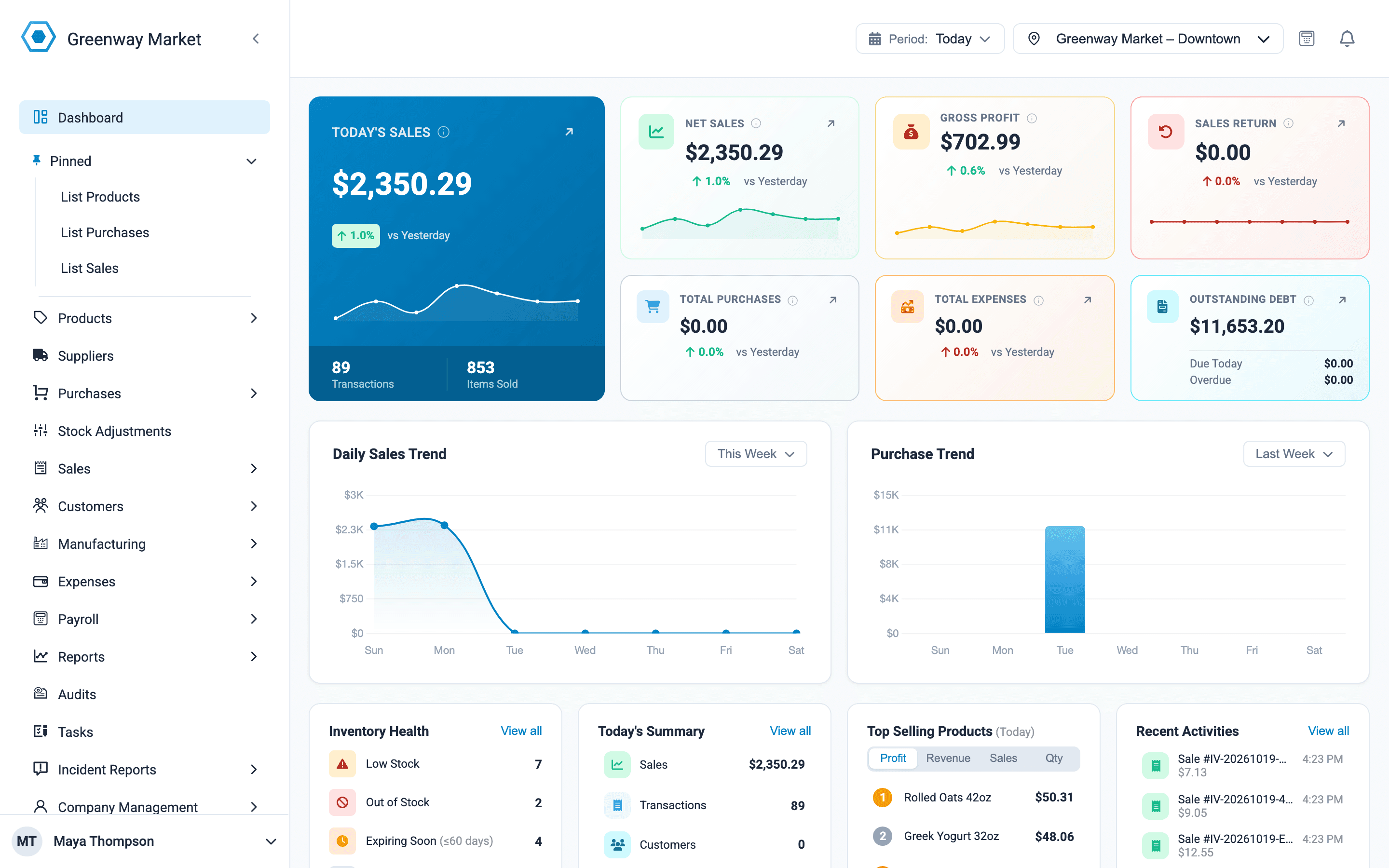
Blind to other branches
Switch to any branch and see its sales, stock and expenses, wherever you are.
Stock in the wrong branch
Move stock between branches, and let stock alerts suggest a transfer before you buy more.
Staff see every branch
Give each person access only to the branches they work in.
For multi-branch businesses
What Onassify does for you
Move stock to the branch that needs it
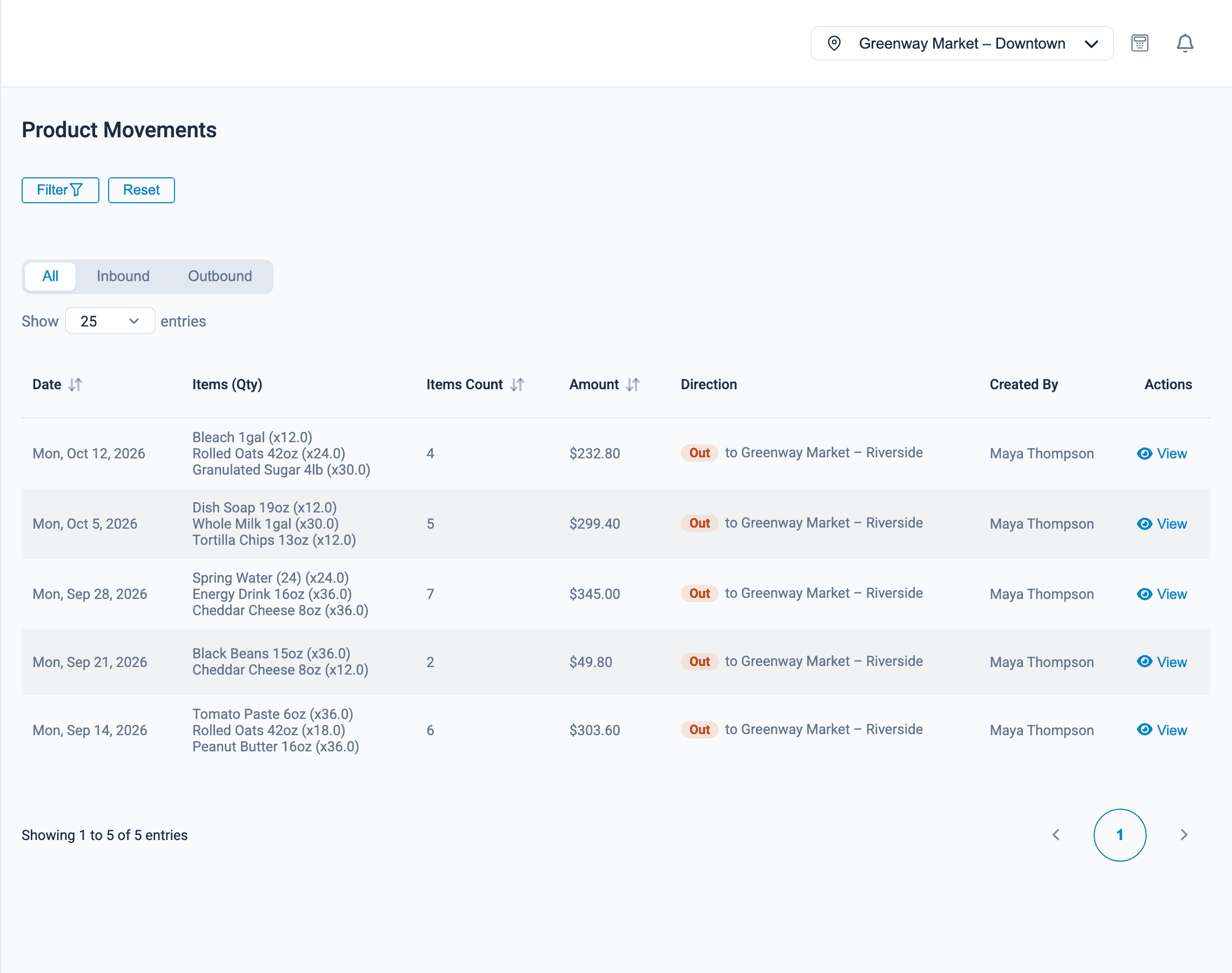
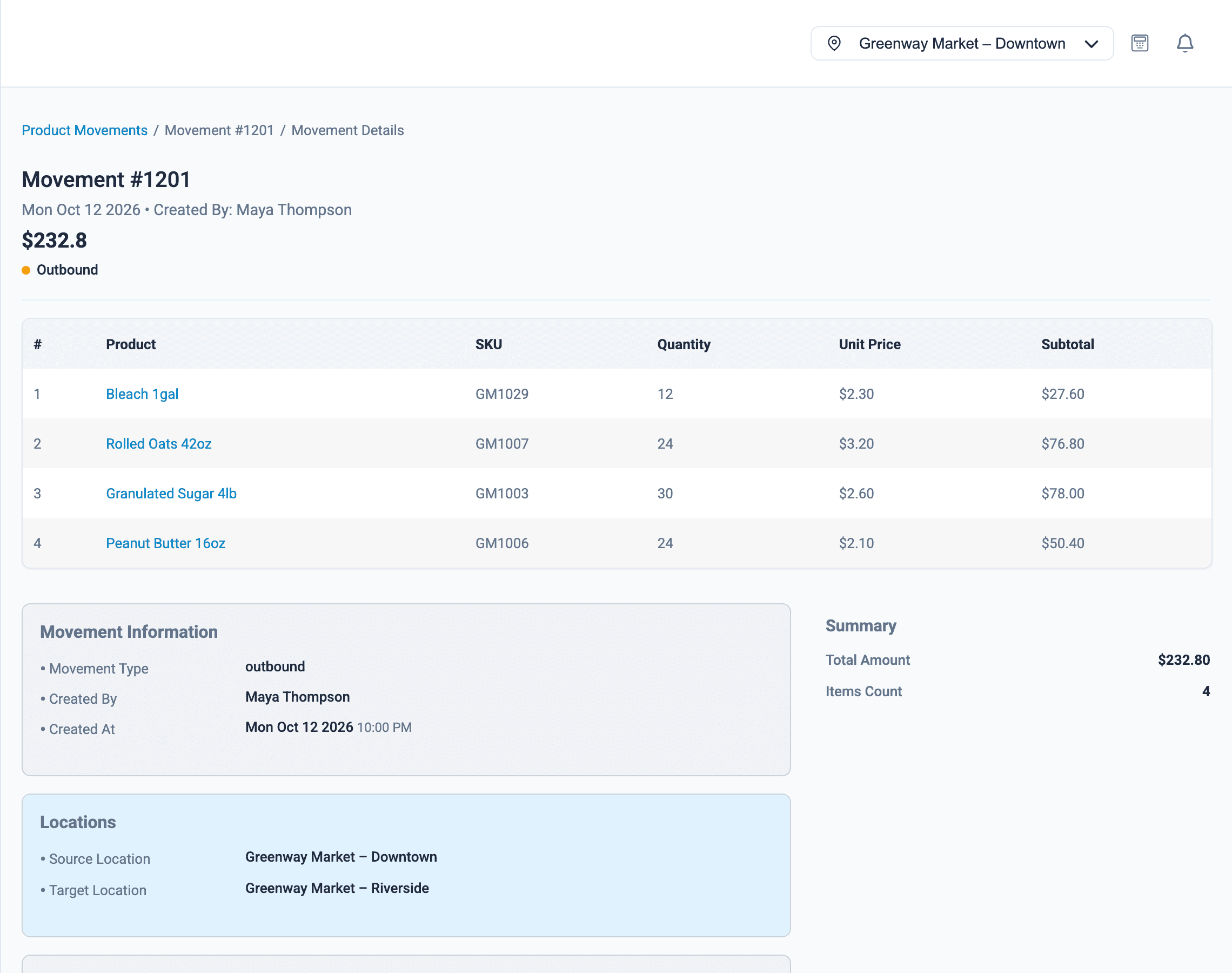
Send stock from one branch to another. The products leave the first branch and arrive at the second, with a record at both ends of what moved, its value and who sent it.
- Transfers between branches in the same account
- Products matched between branches by SKU
- The value of each transfer
- A note on why the stock moved
Made for more than one shop
Copy products to a new branch
Copy your product list to a new branch instead of entering it again.
Transfer suggestions
Stock alerts show when another branch has enough stock to send instead of buying.
Access by branch
Staff sign in and only see the branches they work in.
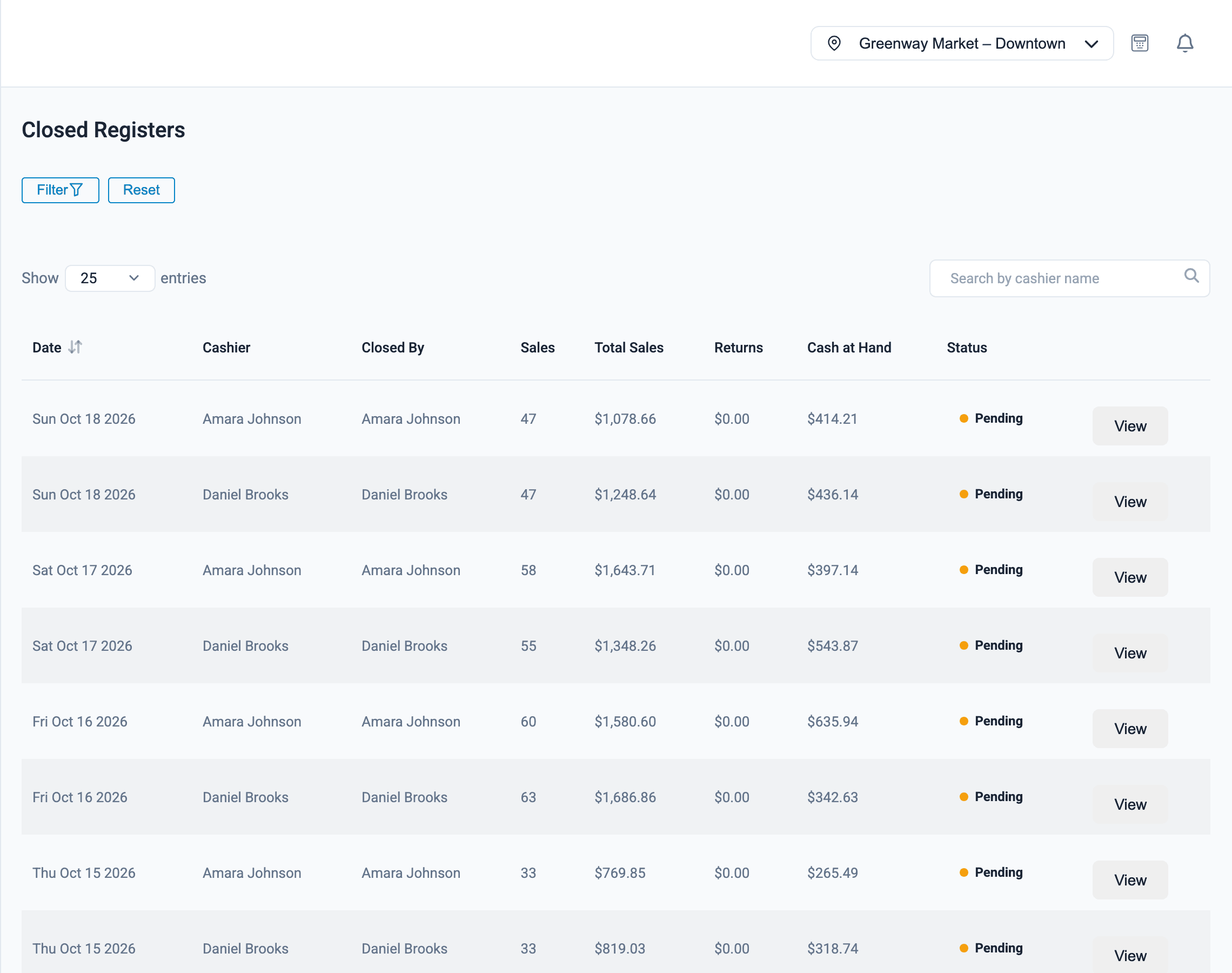
Audits per branch
Each branch counts its own stock against its own records.
Shared salaries
Split one person's salary across the branches they work for.
One account
Add a branch whenever you open one; there is nothing to install.
How it works
Adding a branch
- 1
Create the branch
Add its name and address in your account.
- 2
Copy your products
Copy the product list from an existing branch.
- 3
Send opening stock
Transfer stock from your main branch, or record a purchase.
- 4
Give staff access
Invite the branch's staff and limit them to that branch.
FAQ
Multi-branch retail: questions and answers
How many branches can I run in one Onassify account?
As many as you need. Each branch has its own stock, registers, reports and staff access, all under one account.
Can I move stock from one branch to another?
Yes. A transfer takes the products out of one branch and adds them to the other, with a record of what moved, its value and who sent it.
Can I see all my branches at once?
You can switch between branches in one click and see each one's sales, stock and expenses. There is not yet a single combined report across all branches.
Can a cashier at one branch see another branch?
No, unless you allow it. Each user is given access to specific branches.
Do I have to enter my products again for a new branch?
No. You can copy products from one branch to another.
More of what Onassify does
Supermarkets
Fast checkout, thousands of products, reordering by supplier and a cash count for every cashier.
Learn moreWholesale & distribution
Sell by the carton or the piece, give shops credit with a due date and order from manufacturers by the carton.
Learn moreInventory management
Live stock levels in every branch, low-stock alerts by supplier and a record of every change.
Learn more
Know your stock. Trust your till. Grow your business.
Start your free Onassify trial today. Set up your store in minutes, no card required.